

Snipaste
Snipaste专有
Snip a screenshot, annotate it, and pin it back onto the screen
已复制!粘贴到终端并按回车即可安装。
关于
This is a community package of Snipaste, maintained independently and unaffiliated with the Snipaste developer. It repackages the official upstream AppImage unmodified — extracted at install time, not rebuilt — and follows upstream releases automatically. Snipaste is proprietary software, free for personal use; a PRO licence unlocks the features marked as such upstream.
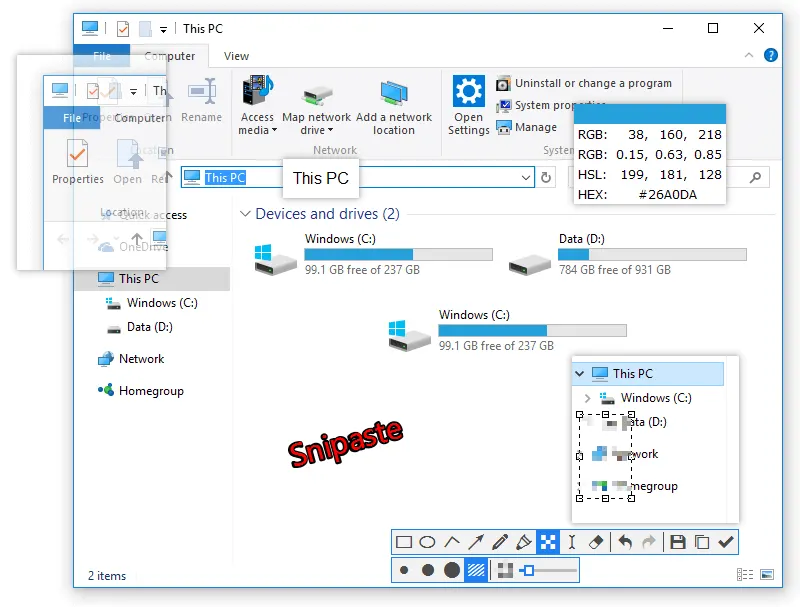
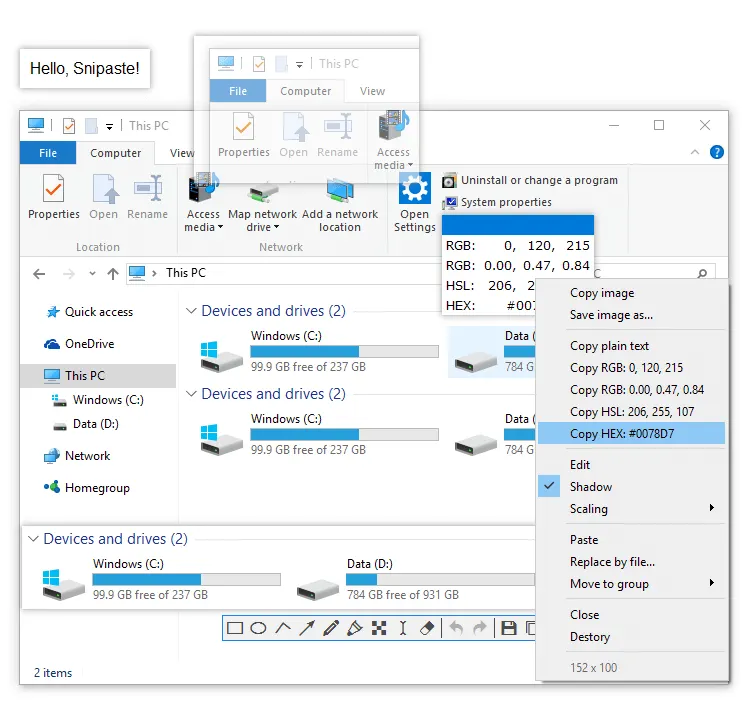
Snipaste is a screenshot tool built around one idea: after you snip a region you can paste it straight back onto the desktop as a floating, always-on-top window, then keep working with it next to the thing you are comparing it against.
- Snip a region, a window or a whole screen, with a magnifier and pixel-exact positioning.
- Annotate before you copy: rectangles, ellipses, arrows, pen, marker, text, mosaic, blur, numbered steps, undo and redo.
- Pin the result to the screen as a floating image window — zoom it, make it click-through, group several of them, hide and restore them all at once.
- Paste images, plain text or HTML from the clipboard onto the screen as image windows.
- Pick a colour anywhere on screen and copy it as RGB, HSL or HEX.
- Copy to the clipboard, save to a folder, quick-save, print, or extract text from the region with OCR.
- Drive every one of those from the command line, which is how you bind them to your own shortcuts (see below).
Worth knowing before you install, because two things behave differently here than they do on Windows. First, Snipaste's own global hotkeys (F1 to snip, F3 to paste) are an X11 mechanism: they work on an X11 session and are silently inactive on Wayland — that is upstream's build, not the sandbox, and the AppImage behaves the same way. On Wayland, bind your compositor's own shortcut to the command instead:
flatpak run com.snipaste.Snipaste snip — and likewise snip --full -o clipboard, paste, pick-color, or any other command from the upstream command list.
Second, screen capture on a Wayland session goes through your desktop's screenshot portal, so the first snip asks for permission once; on X11 it captures directly. The app starts into the system tray, and the autostart switch in its preferences writes inside the sandbox rather than to your session — to start it with your desktop, add your own autostart entry running the command above.
Permissions: this package grants the display, GPU, network (update check, PRO activation, OCR), notifications, a tray icon, read-write access to your Pictures folder — where screenshots are saved — and your Desktop folder — where quick-save puts them by default — and to ~/.snipaste, the one directory Snipaste keeps its own state in (its config.ini, snip history and the pinned windows it restores on the next start). Those three directories are all it can see of your home, and an existing native Snipaste install shares the same settings. A few capabilities are left off by default; enable the ones you want with "flatpak override":
- Save screenshots somewhere else, or read images to paste from another folder:
flatpak override --user --filesystem=~/Screenshots com.snipaste.Snipaste(name your own folder), or--filesystem=homefor all of it. - Let "Open containing folder" reach your desktop's file manager:
flatpak override --user --talk-name=org.freedesktop.FileManager1 com.snipaste.Snipaste - Work fully offline, with no update check or online activation:
flatpak override --user --unshare=network com.snipaste.Snipaste
Review or undo what you have granted with flatpak override --user --show com.snipaste.Snipaste and flatpak override --user --reset com.snipaste.Snipaste.
详情
- 开发者
- Snipaste
- 许可证
- Proprietary
- 运行时
- Freedesktop 26.08
- 架构
- x86_64
- 版本
- 2.11.3 · 2026-01-18
- 网站
- 主页
- 支持
- 帮助与支持
- 源码
- Snipaste
权限
5 项需确认X11 窗口系统
传统显示协议;可窥探其他 X11 窗口的输入
网络访问
可访问互联网和本地网络
文件:~/.snipaste:create
文件:xdg-pictures
文件:xdg-desktop
进程间通信
与主机共享 IPC 命名空间
与 org.freedesktop.Notifications 通信
与 org.kde.StatusNotifierWatcher 通信
占用服务名 com.Snipaste.ClipboardService
与 org.kde.KWin.ScreenShot2 通信
与 org.gnome.Shell.Screenshot 通信
Wayland 显示
GPU 加速